The app
User manual
Klavier is German for piano. It is a piano practice app for iPad and iPhone. Open a MusicXML score, follow it on the sheet and on an on-screen keyboard, and play it on a MIDI keyboard — or let Klavier play it for you.
Contents
Getting started
Klavier runs on iPad and iPhone (iPadOS or iOS 17.7 or later). There is no account and no sign-in.
The first time you open the app, a short splash screen appears. Tap it to continue. Klavier then opens the most recent score you used, or one of the two pieces included with the app: Happy Birthday and Ode to Joy.
You can practice with the on-screen keyboard alone. A MIDI keyboard is optional. Connect one over USB or Bluetooth when you want Klavier to listen to what you play.
On a narrow screen, such as an iPhone, Print, Practice History, Recordings, About, and Full Screen move into the More button (the circle with three dots) at the right of the top bar. The other controls stay in the bar.
The screen
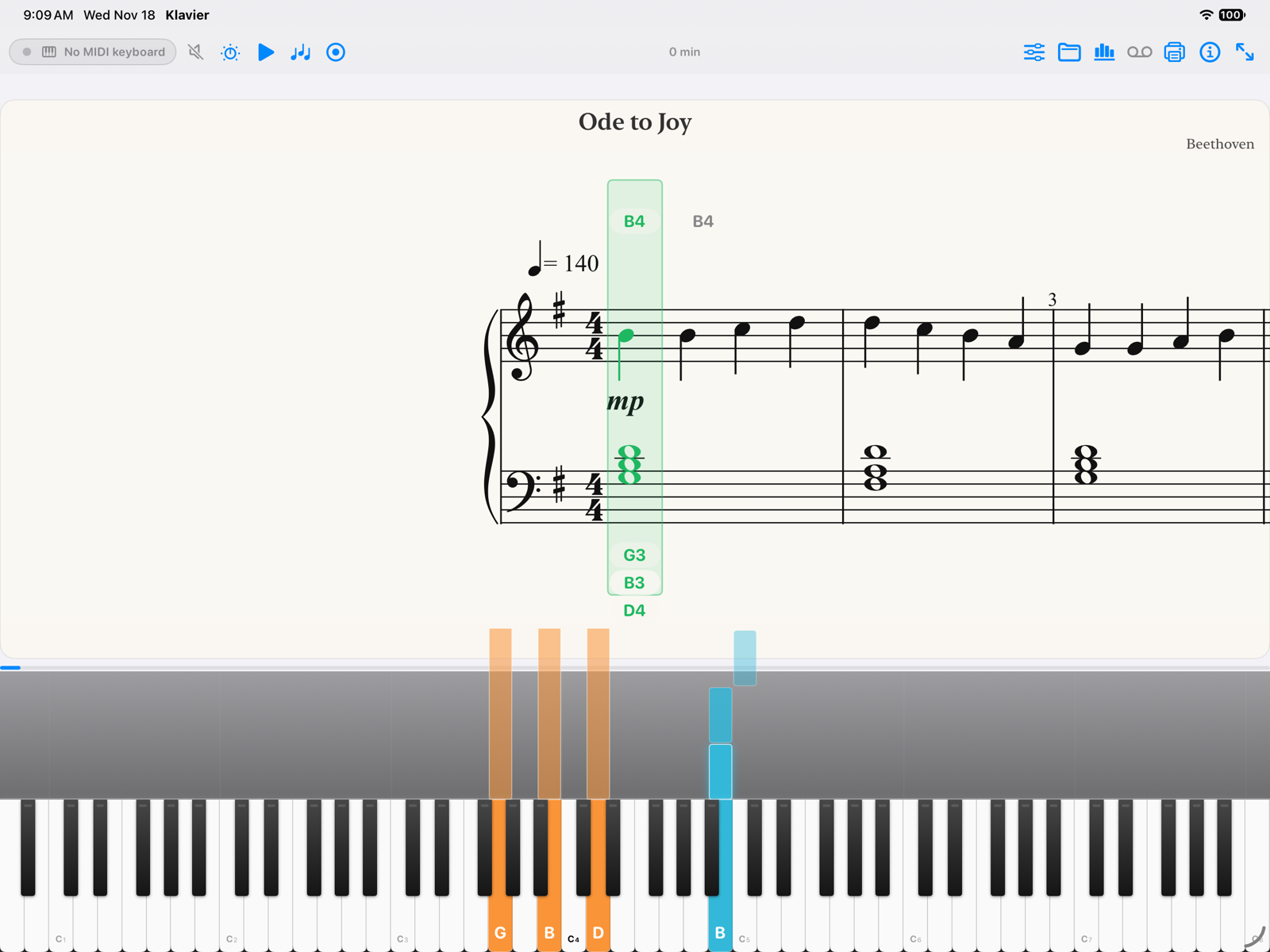
The top bar stays visible until you go full screen. From left to right:
- MIDI status. A colored dot and the name of the connected keyboard. Tap it to see connections or pair Bluetooth. Green means a keyboard is connected, gray means none, and orange means MIDI reported a problem.
- Speaker. Opens two switches, iPad (or iPhone) and Piano. They choose native piano sound, the iPad’s sound font through the piano speaker, or both. The three setups are under Listening to the score. A red dot on the button means the piano speaker is off.
- Playback (the dial). Speed, reverb, and piano sound.
- Play. Plays the score from the current chord. Tap again to pause.
- Play by Ear. The three notes. Opens a blank grand staff and writes down what you play.
- Record. The red circle records what you play. During Play by Ear it is already recording; tap it to stop the take.
- Played today. In the middle of the bar, when Pro Mode is off: how long you have played today, such as 12 min or 1 h 5 min. It adds up across every song. Pro Mode leaves that spot empty. Full screen hides the whole bar.
- Settings (the sliders). How the sheet, keyboard, Drill, and screen saver behave.
- Scores (the folder). Open a file, an included piece, or a recent score.
- Practice History (the chart). Time practiced, plays, and wrong keys, by song or by day.
- Recordings (the tape). Play, share, or delete saved performances.
- Print. Print the open score on A4 or US Letter.
- About (the info button). Version and third-party licenses.
- Full screen. Hides the top bar, the status bar, and the home indicator so the sheet and keyboard use the whole screen. Tap the button in the upper-right corner to bring the bar back.
Below the bar is the sheet. Under the sheet is a thin progress line, or the Drill bar when Drill is on. At the bottom is the on-screen piano, unless Pro Mode is on.
The current chord is highlighted on the sheet and on the keys. Right-hand notes are blue. Left-hand notes are orange. A green mark shows a key you are holding that belongs to the chord. A wrong key turns red. With note names on, the names sit on the keys and on the sheet.
Opening scores
Klavier opens MusicXML (.xml, .musicxml) and compressed MusicXML (.mxl).
From a file
- Tap the folder button.
- Tap Open MusicXML / MXL…
- Choose a file from Files, iCloud Drive, or another app.
If the file has no real title, Klavier uses the file name.
Save a copy on this device
With a score open, the same menu offers Save on This iPad (or iPhone). That copies the file into Files › On My iPad › Klavier, or the same place on iPhone. If the open score is already stored there, the row shows a checkmark.
Included pieces
The same menu lists Included scores that ship with the app. Each row shows the title, the composer underneath, and On this iPad (or iPhone) at the right. Tap one to open it.
Recent
Scores you open are remembered under Recent, newest first, up to the last 20. Each row shows the title, the composer underneath, and a note at the right:
- On this iPad (or iPhone) — the file is here. Tap the row to open it.
- Not on this iPad (or iPhone) — the file has been moved or deleted from this device.
- KlavierXML — the song was written in this app by Play by Ear, so it can be deleted. The row has a trash button.
Touch and hold a row, or swipe it to the side, and tap Remove to drop it from the list. That does not delete the file, except for a KlavierXML song: its trash button deletes the file after you confirm. Clear History removes the whole list and does not delete the files.
Practicing
The highlighted chord is the one Klavier is waiting for.
Without a keyboard
- Tap a note or chord on the sheet to jump there.
- Swipe the sheet. A short swipe steps one chord. A longer, faster swipe travels further.
- Use the left and right arrows above the on-screen keyboard to step one chord at a time.
Stepping, tapping, or swiping to another chord stops playback.
With a MIDI keyboard
Play every note of the highlighted chord. When the chord is complete, Klavier moves to the next one. You can hold the notes together or play them one after another, as long as the notes of the chord are down together at the end.
Keys that are not part of the chord are marked wrong. In Drill, those keystrokes are counted. Time you spend playing is added to today’s total and to Practice History. A pause longer than a couple of seconds counts as a break and is not added. Play by Ear is the exception: the whole take is counted, pauses included.
On-screen keyboard
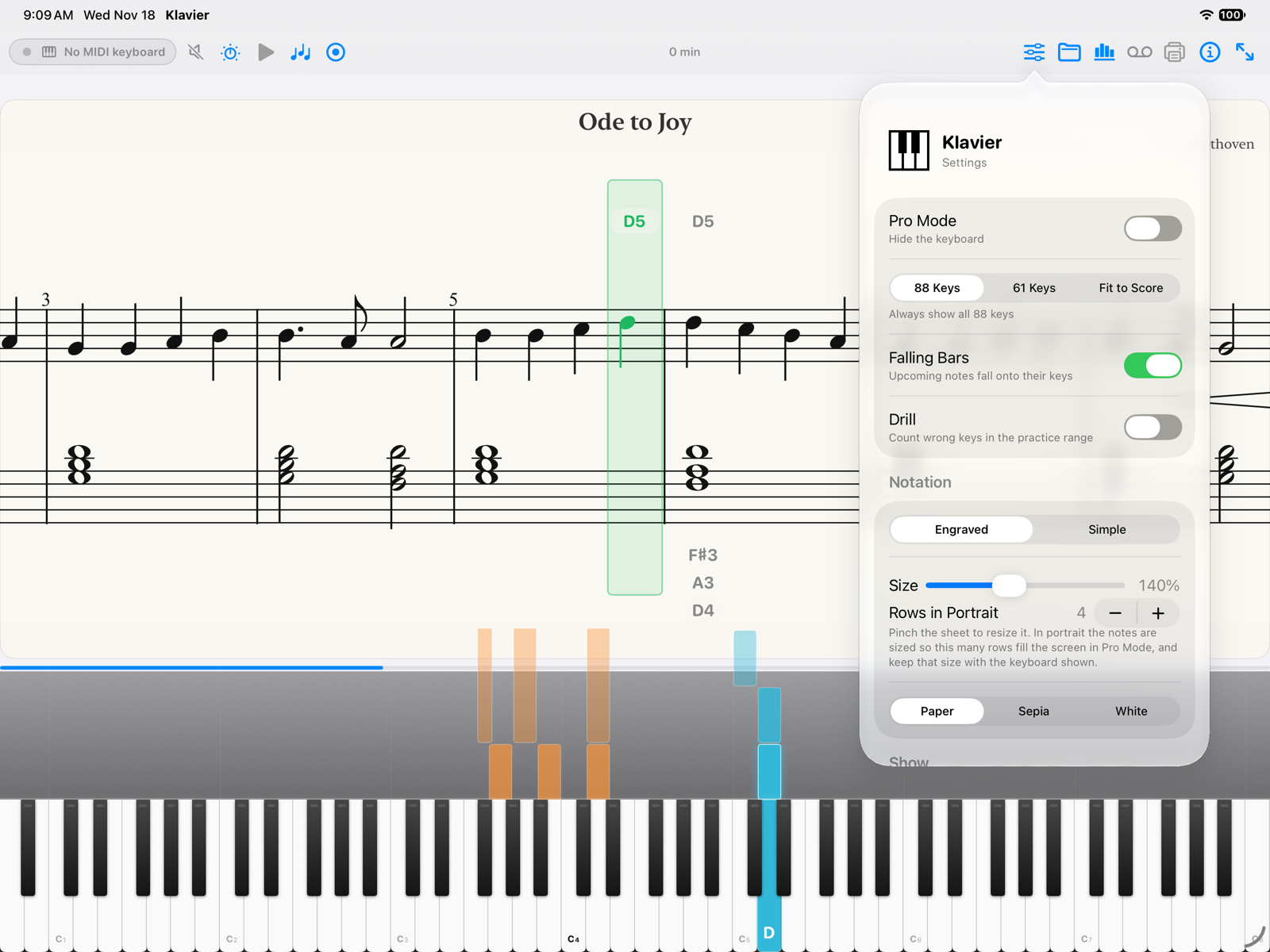
The piano shows the notes of the current chord. Upcoming notes can fall onto their keys as bars. Turn Falling Bars off in Settings if you only want the keys.
88 Keys always shows the full piano. 61 Keys shows C2 to C7. Fit to Score shows only the octaves the piece uses, from C to C. On iPhone, a new install starts with Fit to Score and slightly smaller notes.
Pro Mode hides the keyboard so the sheet fills the screen. It also hides today’s practice time. Drill, playback, and a connected MIDI keyboard still work.
Portrait and landscape
Turn the device to change the sheet.
- Landscape. The music is one long line. The current chord stays centered as you move.
- Portrait. The music wraps into rows, like a page. Moving to another row turns the page. Rows in Portrait in Settings chooses how many rows fill the screen in Pro Mode (from 2 to 6). With the keyboard shown, the notes keep that size, so fewer rows fit.
Pinch the sheet to resize it. In landscape this changes the note size. In portrait it changes how many rows fit.
Play by Ear
Play by Ear starts from an empty grand staff and writes the music as you play it on a MIDI keyboard.
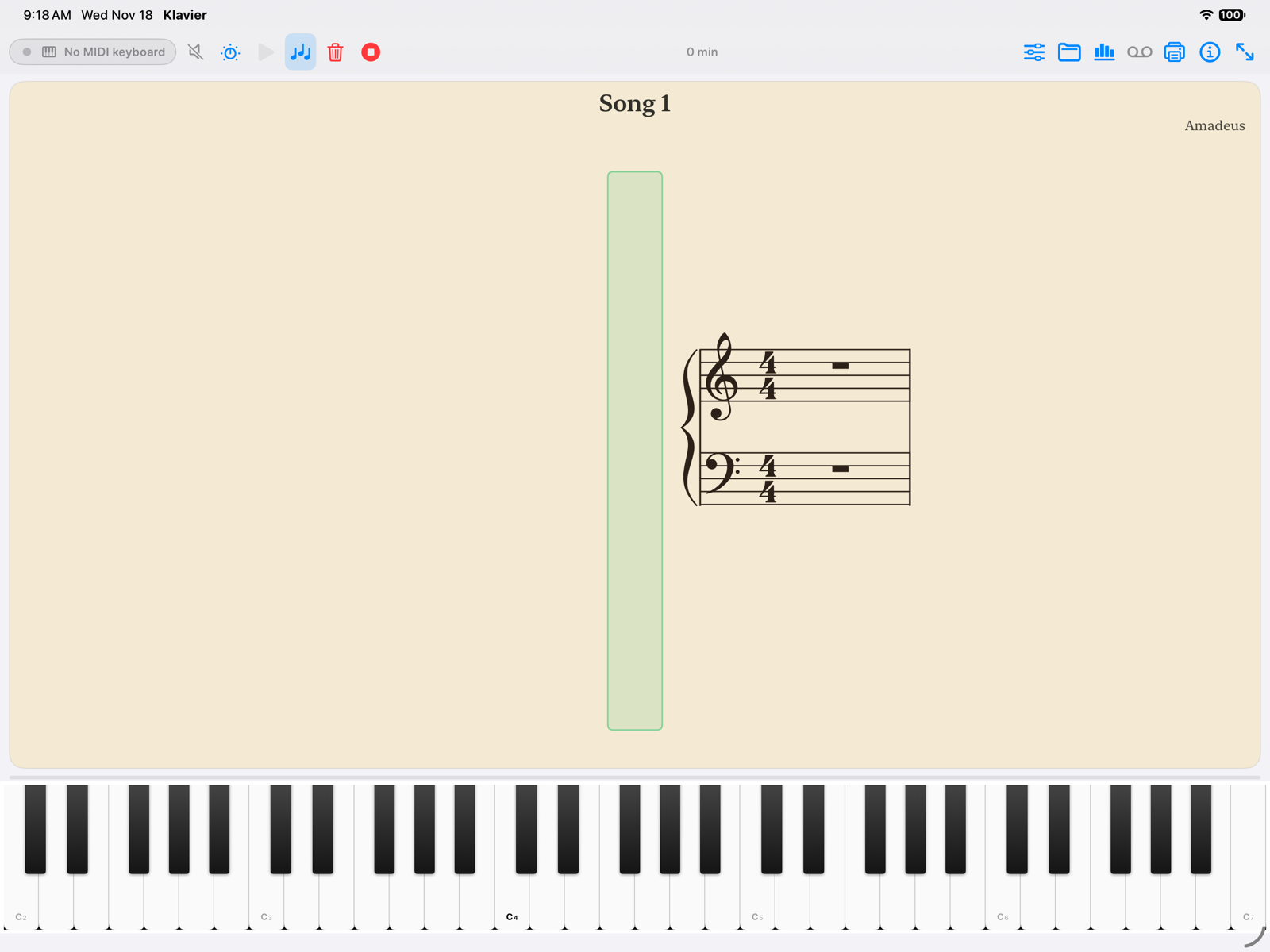
- Tap Play by Ear (the three notes, between Play and Record).
- Play. Middle C and above are written on the treble staff. Notes below middle C go on the bass staff. Nothing you play is marked wrong, and the falling bars stay off for the take.
- The keyboard starts at 61 keys, C2 to C7. Play below C2 or above C7 and it grows outward to the next C, the same way Fit to Score chooses its ends. It stays that wide until the take is over.
- Tap the red record button to stop. Klavier asks for a title and a composer. The title offered is Song 1, then Song 2, and so on. The composer offered is the last one you saved from Play by Ear, or Amadeus the first time.
- Save writes a MusicXML file into Files › On My iPad › Klavier (or On My iPhone) and keeps the practice time under that title. Discard throws the song away.
The whole take counts as practice time, including the pauses between phrases. Today’s total in the top bar still rounds to the minute, so a short take can show as 0 min. Practice History keeps the seconds.
A saved song is marked KlavierXML in Scores. That mark means the file was written by this app and can be deleted. Tap the trash button in the top bar, or Delete This Play by Ear Song in Scores, and confirm. The file is removed. The time you practiced stays in Practice History under the name Play by Ear.
Drill
Turn Drill on in Settings. The thin progress line becomes a practice bar. You can also choose By Measure or By Chord there. The same choice is on the bar: tap the Measure or Chord label at the start of the range to switch. The music you had selected stays selected.
The range
Drag the two ends of the slider to choose where to practice. The chevrons beside each end move that end by one measure, or one chord. The button with the left-and-right arrow, at the right of the bar, selects the whole piece again. A green tick marks where you are. Brackets appear on the sheet only when the range is narrower than the whole piece. The same brackets can be set from the piano, with the lowest key on the left and the highest key on the right.
Klavier loops that passage. When you play the last chord, it stays there briefly, then jumps back to the first. Playing on during that pause goes back right away. Playback with Drill on repeats the practice range until you pause. If the current chord is outside the range, playback starts at the beginning of the range.
A sideways swipe stops at the brackets. Playing through the range still loops. Tapping a chord on the sheet can still jump outside the brackets.
On the engraved sheet, tap the lasso and draw a loop around the measures (or chords) you want. Klavier sets the range to what you circled and leaves lasso mode. The hint at the top of the sheet tells you whether to circle measures or chords.
Setting the range from the piano
With Drill on, the two end keys of an 88-key piano set the brackets, so you can mark a passage without leaving the keyboard.
- Low left is the bottom key, A0, at the far left.
- High right is the top key, C8, at the far right.
- The black key immediately beside that top key, B7, shortens the range.
These keys still work when Fit to Score hides them on the screen. Klavier does not treat them as music: they do not move the highlight, and they are not counted as wrong keys.
Set the brackets. Hold the low-left key and tap the high-right key, or press the two together. The start is where you are now: the current measure when the bar says Measure, or the current chord when it says Chord. The end is one measure further. In chord steps that takes in every chord from where you are through the last chord of the next measure. Brackets appear on the sheet, and the slider moves to match.
Make it longer. Hold the low-left key and tap the high-right key again. Each tap adds one step at the end. A step is one measure when the bar says Measure, and one chord when it says Chord. Keep tapping to walk the end toward the close of the piece. It stops at the last measure or chord.
Make it shorter. Hold the low-left key and tap the black key just beside the high-right key. Each tap moves the end one step back toward the start. The end will not pass the start, so the shortest range is the single measure or chord you began with. If the range already covers the whole piece, this tap brings the end back in and the brackets show again.
Clear it. Let go, then strike the low-left key twice, quickly. The brackets disappear and the whole piece is selected again. One tap of that key leaves the range as it is. If the two taps are far apart, nothing is cleared; strike them closer together.
A range you already set with the slider or the lasso is kept. The next low-left and high-right press adds one measure or chord at the end. To begin again from the chord you are on, clear the range with the double tap, then press the pair once more.
Hands
The hand buttons choose the left hand, the right hand, or both. At least one hand stays on. A hand you turn off is skipped: Klavier waits only for the other hand’s notes, and chords that have none of those notes are passed over. The keys highlight only the hand you are practicing.
Wrong keys
The number at the left of the bar is how many wrong keys you have struck in this pass. It is green at zero and red otherwise. Tap the number, when it is not zero, to start the count over.
When you reach the end of the range, the count stays on screen until you play the first chord of the next pass. The hand buttons react to that pass: a clean pass is applauded, and a rough one is marked accordingly. Stepping backward by hand starts the count over.
Practice history
Tap the chart button (or Practice History in More). Songs you play on a MIDI keyboard are listed with the time practiced, complete plays, partial plays, and wrong keys.
By Song adds up every day for each piece: time, plays, last day practiced, the piano you used, and the file name. By Day lists that day’s songs, newest day first. The top of the list shows the total practice time.
For an ordinary score, practice time is the gaps between notes, as long as the next note comes within a couple of seconds. A longer pause is a break and is not counted. A Play by Ear take is different: the clock runs from the first note until you stop, pauses included. A wrong key is a key that was not in the chord being played. Play by Ear does not count wrong keys.
If you delete a Play by Ear song, its time remains, under the name Play by Ear. A song you saved keeps the title you gave it.
Reset All Data… deletes the history. You can save it as a CSV file first, or reset without saving. If the save fails, nothing is deleted.
The time in the middle of the top bar is only today. Practice History keeps earlier days as well.
Recordings
Tap the red record button next to Play. Klavier records the performance, including notes from a connected MIDI keyboard. Tap the button again to stop. The recording is kept, and the list opens.
Open Recordings from the tape button, or from More. The newest 10 are kept. Each row shows the title, composer, date, and length.
- Play and Stop listen to it with the current piano sound and reverb.
- MIDI shares a MIDI file for other apps.
- M4A shares an audio file to listen elsewhere.
- The trash button, or a swipe, deletes that recording.
Listening to the score
Tap Play to hear the score from the current chord. The highlight and the on-screen keyboard follow along. Tap pause to stop. While playback is running, the screen saver waits.
Where the sound comes from
The speaker button chooses what you hear. The two switches make three setups, and Klavier remembers them.
- Native piano sound. Leave Piano on and turn the iPad (or iPhone) off. You hear the instrument’s own speaker.
- Sound font through the piano speaker. Turn Piano off. Klavier asks the instrument to stay quiet, and the iPad plays the sound font chosen below through the piano speaker. A red dot on the speaker button means the piano is off.
- Both. Leave Piano on and turn the iPad on. You hear the instrument and the sound font together.
Open Playback (the dial) to change how the sound font plays. These settings are remembered.
- Speed. From half speed to one and a half times the written tempo, in steps of 5%. 100% is as written.
- Reverb. Dry, Room, or Concert Hall.
- Piano Sound.
- Classic Grand — a Yamaha grand
- Compact Upright — a light Kawai upright
- Studio Upright — a multi-layer Kawai upright
- Concert Grand — a Yamaha Disklavier Pro, the most detailed
The larger sounds take a moment longer to load the first time you choose them. The speaker button and Recordings use the same piano and reverb.
Connecting a MIDI keyboard
Tap the MIDI status in the top bar.
USB
Plug the keyboard into the iPad or iPhone with a USB cable (a camera adapter or a USB-C port, depending on the device). It should appear in the list. Tap Refresh if it does not.
Bluetooth
Tap Bluetooth MIDI… and pair the keyboard on Apple’s pairing screen. Tap Done when you are finished. Klavier asks for Bluetooth only for this.
While you play
The dot flashes when MIDI messages arrive. A short notice appears when a keyboard connects or disconnects. Several keyboards can be connected at once; the status then shows how many.
If a keyboard is unplugged in the middle of a chord, Klavier releases the notes it was holding so the chord does not stay stuck. A keyboard connecting also wakes the screen saver.
The sheet
Open Settings (the sliders). Everything in this panel is remembered.
Renderer
- Engraved draws the score as published sheet music, including slurs, lyrics, and fingerings when the file has them.
- Simple draws a lighter notation if you prefer it, or when an engraved file cannot be shown. Switch to Simple from the message on the sheet if engraving fails, and you can keep practicing.
Engraved look
- Size and Rows in Portrait match what a pinch does.
- Paper, Sepia, or White. On Sepia you can add a Dog Ear — a folded corner, worn edges, and now and then a penciled note, sharp, or rest — and Coffee Stains & Scribbles, faint cup rings and light pencil marks. Both stay put for a given score. They do not jump when Play by Ear adds the next chord.
- Fingerings, Slurs, and Lyrics can each be hidden. These switches apply to the engraved sheet.
What to show
- Title, Composer, and Measure Numbers.
- Chord Symbols. Turning this off also hides every note name: on the sheet and on the keys.
- Current Note Names labels the chord you are on. Upcoming Note Names labels the next one as well, and only appears when current names are on.
- German Note Names uses H instead of B, and the usual German sharp and flat names.
Printing
Tap the printer, then choose A4 or US Letter. On a narrow screen, both choices are under More. Klavier lays the score out on pages and opens the print dialog. Printing uses the engraved look, including the show and hide choices from Settings. Wait for the dialog; a long score takes a moment to prepare.
Screen saver
After a few minutes with no touches and no MIDI keys, the screen goes black and shows the title, the composer, and the piano. Start After in Settings sets the wait from 5 to 45 minutes, in steps of 5. The default is 5 minutes.
Each appearance fades in at a new place, so one spot on the screen is not lit the whole time. If you have opened scores before, it cycles through the last five, newest first. The piano name is the connected MIDI keyboard when one is attached, and otherwise the playback piano you selected.
Tap the screen, play a key, or connect a keyboard to wake it. The key that wakes it does not count as a played note. While a score is playing back, the screen saver does not start.
Once the screen saver is up, the device may lock on its own, following the Auto-Lock time in Settings, so a forgotten device does not stay lit.
About and licenses
Tap the info button for the version and the third-party software and piano sample licenses. The splash screen points to the same texts.
Klavier does not collect an account, analytics, or the notes you play. Scores you open, your practice history, and your recordings stay on the device. Bluetooth is used only for MIDI. Details are in the privacy section.
© 2026 Rüdiger Lueg